

Passwords are not disappearing overnight. However, for businesses using Microsoft 365, the traditional password is no longer the strongest or most practical way to protect an account.
Passkeys offer a simpler sign-in experience using a device PIN, fingerprint, facial recognition or a physical security key. More importantly, they are designed to resist phishing attacks that can steal passwords, one-time codes and even some forms of multifactor authentication.
For BVI businesses handling client records, financial information, legal documents, property data or customer communications, moving towards passwordless sign-in is a sensible next step in improving cyber security.
What is a passkey?
A passkey is a modern sign-in credential based on FIDO2 and WebAuthn security standards.
Instead of storing a password that can be guessed, stolen or reused, a passkey uses a unique cryptographic key pair:
- A private key stays securely on the user's device or approved passkey provider.
- A public key is stored by the service being accessed, such as Microsoft Entra ID.
- The user confirms their identity with a fingerprint, face scan, device PIN or security key.
- The passkey only works with the website or service for which it was created.
This means there is no password for an attacker to copy and no reusable code for a criminal to intercept. Microsoft describes passkeys as phishing-resistant credentials that can provide strong authentication and, when combined with a biometric or PIN, can satisfy multifactor authentication requirements.
Why passwords remain the weakest link
Passwords create several security and management problems for organisations.
They are reused
Many people use the same password, or a variation of it, across multiple services. If an unrelated website suffers a data breach, attackers may try those stolen credentials against Microsoft 365 accounts.
This technique is known as credential stuffing. It relies on the fact that people often reuse passwords.
They can be phished
A convincing email, text message or phone call may direct someone to a fake Microsoft 365 sign-in page. If the user enters their password, the attacker may be able to use it immediately.
Even strong passwords can be stolen in this way.
They are difficult to manage securely
Businesses must deal with forgotten passwords, password resets, shared accounts, insecure notes and former employees who may still know credentials.
Password managers can reduce some of these risks, but they do not remove the password itself from the authentication process.
They encourage unsafe shortcuts
When employees are asked to change passwords regularly or manage multiple complex credentials, some will write them down, reuse them or choose predictable patterns. Good security should make the safe option straightforward.
How passkeys help prevent MFA fatigue attacks
Multifactor authentication, or MFA, is still an important security control. It requires more than one form of proof before allowing access.
However, not all MFA methods offer the same level of protection.
An MFA fatigue attack, sometimes called push bombing, occurs when an attacker repeatedly sends sign-in approval requests to a user. The intention is to create confusion or annoyance until the person accepts one by mistake.
Other attacks may trick users into entering a one-time code into a fraudulent website.
Passkeys improve this situation because the sign-in is initiated by the user and linked to the genuine service. There is no stream of unexpected approval requests to accept and no SMS or email code for a criminal to request.
Passkeys do not replace every part of a security programme. Staff still need to recognise suspicious emails, report unusual activity and protect their devices. However, they remove several common opportunities for attackers to exploit human error.
Passkeys in Microsoft 365 and Microsoft Entra ID
Microsoft Entra ID is the identity and access platform behind Microsoft 365 sign-in. It allows organisations to manage users, security methods, access policies and authentication requirements.
Depending on the organisation's devices, licensing and security requirements, Microsoft 365 users may use:
- Passkeys stored on a Windows, macOS, iOS or Android device.
- A passkey in the Microsoft Authenticator app.
- A FIDO2 hardware security key.
- A synced passkey managed by services such as Apple iCloud Keychain or Google Password Manager.
- Windows Hello for Business using a PIN, fingerprint or facial recognition.
A device-bound passkey stays on one physical device or security key. This can be appropriate for administrators and users handling particularly sensitive systems.
A synced passkey can be made available across trusted devices through an approved passkey provider. This is often more convenient for general users who work across laptops and mobile devices.
The right approach depends on your business. A law firm, trust company or financial services organisation may choose stricter controls for administrators and privileged users, while allowing a more convenient option for general staff.
What does passwordless sign-in look like?
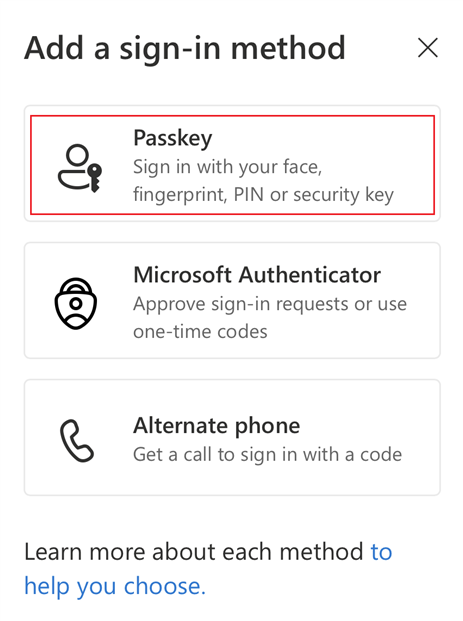
A typical Microsoft 365 passkey sign-in works like this:
- The user opens Outlook, Teams, SharePoint or another Microsoft 365 service.
- They enter their work email address.
- Microsoft Entra ID identifies that a passkey is available.
- The user selects the passkey sign-in option.
- They confirm using a PIN, fingerprint, face scan or security key.
- Access is granted without entering a password.
For the user, this can be quicker than typing a password and responding to a separate MFA prompt. For the business, it reduces reliance on credentials that can be phished or reused.
A practical passkey rollout checklist for BVI businesses
Moving to passwordless sign-in should be planned rather than switched on for everyone without preparation.
1. Review your current environment
Identify:
- Which users have access to Microsoft 365.
- Which accounts have administrator privileges.
- Which users still rely on SMS or voice MFA.
- Which devices and operating systems are in use.
- Whether any shared accounts or legacy applications depend on passwords.
2. Start with higher-risk accounts
Administrators, finance staff, senior management and employees with access to sensitive client information should usually be prioritised.
For highly privileged accounts, a device-bound passkey or FIDO2 security key may be appropriate.
3. Check device readiness
Passkey support depends on the device and operating system. Update supported laptops, phones and browsers before beginning the rollout.
Older equipment may need upgrading or may require a physical security key.
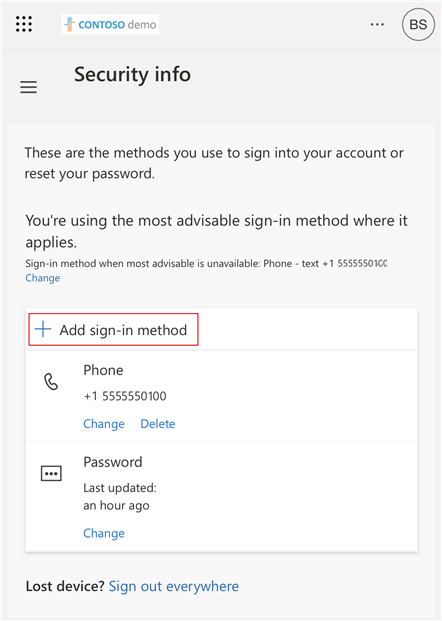
4. Enable passkeys in Microsoft Entra ID
An administrator can enable Passkey (FIDO2) under the Microsoft Entra authentication methods policies. Begin with a small pilot group rather than the entire organisation.
Microsoft provides guidance for configuring passkey profiles, targeting user groups and selecting device-bound or synced passkeys.
5. Register at least two sign-in methods
Users should have a backup method in case their primary phone or laptop is lost, damaged or replaced.
For example, a user may have a passkey on their phone and Windows Hello on their work laptop. Administrators may also be issued a separate hardware security key.
6. Use Conditional Access carefully
Conditional Access policies can require phishing-resistant authentication for administrators, sensitive applications or specific user groups.
Start in report-only mode where possible. Review the results, resolve compatibility issues and then enforce the policy in stages.
7. Train staff before enforcement
Explain what passkeys are, how registration works and what users should do if they receive an unexpected sign-in request.
Staff should know that:
- Fresh Mango or Microsoft will not ask them to disclose a passkey.
- They should report unusual sign-in prompts.
- They should never approve an unexpected authentication request.
- A passkey should only be registered through the organisation's approved process.
Our cyber security services include security awareness training and certification to help teams build these habits.
8. Monitor adoption and support requests
Track registration, sign-in success and helpdesk questions. Roll out passkeys in manageable groups and slow down if users are experiencing avoidable access problems.
A passwordless project should improve security without creating unnecessary disruption.
What businesses should avoid
Do not remove every fallback method before testing the new process. Do not rely on a single administrator account or a single physical security key. Do not assume that passkeys remove the need for device security, software updates or staff awareness training.
Businesses should also review third-party applications. Some older systems may not support modern authentication and may need updating, replacing or protecting through additional access controls.
How Fresh Mango can help
For organisations in Tortola, Virgin Gorda, Jost Van Dyke, Anegada and across the BVI, passkey adoption is best treated as part of a wider identity and security review.
Fresh Mango can help you assess your Microsoft 365 setup, review authentication methods, plan a phased rollout and support users during registration.
You can learn more about our Managed IT Services, Microsoft 365 support and cyber security training. If you are unsure whether your organisation is ready for passwordless sign-in, a practical cyber security review is a good place to begin.
Frequently asked questions
Are passwords completely dead?
No. Passwords remain in use across many systems and may still be required as a recovery or fallback method. However, passkeys are increasingly becoming the preferred option for secure sign-in, particularly for Microsoft 365 and other modern cloud services.
Are passkeys safer than passwords?
Passkeys are generally safer because they are unique to a service, cannot be reused in the same way as passwords and are designed to resist phishing. They also avoid sending a password or one-time code to a website during sign-in.
Do passkeys replace multifactor authentication?
A passkey can satisfy multifactor authentication when it is unlocked with a device PIN or biometric factor. Businesses should still configure appropriate Microsoft Entra policies and consider the sensitivity of each account and application.
What happens if an employee loses their phone?
Employees should have a second registered authentication method. The organisation should also have a documented account recovery process, with identity verification before access is restored.
Should every employee receive a hardware security key?
Not necessarily. Hardware FIDO2 security keys are particularly useful for administrators, highly privileged users and people working with sensitive information. Other users may be well served by passkeys on supported devices or in Microsoft Authenticator.
Can passkeys work for remote and hybrid workers?
Yes. Passkeys can support users working from home, travelling or accessing Microsoft 365 from different locations. Device readiness, approved sign-in methods and a clear recovery process are important for successful remote use.
Is passkey rollout suitable for a small business?
Yes. Small businesses can begin with a pilot group, prioritise administrator accounts and expand gradually. Working with a managed IT provider can help reduce configuration errors and ensure users receive practical support.